Best Free Tools To Monitor PC Performance
Have you ever been in the middle of an important task when your computer suddenly slows down, freezes, or starts acting like it needs a nap? I have been there too. It is funny how a machine that looks completely fine on the outside can be running a whole silent drama inside. That was exactly what pushed me years ago to explore the best free tools to monitor PC performance and figure out what was happening behind the scenes.
Today, I want to share everything I have learned in a friendly, completely beginner friendly way. Whether you are a student, gamer, office worker, freelancer, or someone who just wants their computer to run better, this guide will help you understand which tools can actually make a difference.
Now, let us dive deeper and explore why monitoring matters and which tools truly deserve a spot on your PC.
Why Monitoring PC Performance Matters
Before we jump into the best free tools to monitor PC performance, let us look at why monitoring even matters. Because honestly, most people ignore it until their computer starts screaming for help.
I remember working on a big client project once. My deadline was tight, and my laptop kept heating up. I could hear the fan spinning like it was preparing for take off. At first, I ignored it. But soon the system slowed so much that even opening a browser tab took ages. When the screen finally froze, I knew something was wrong.
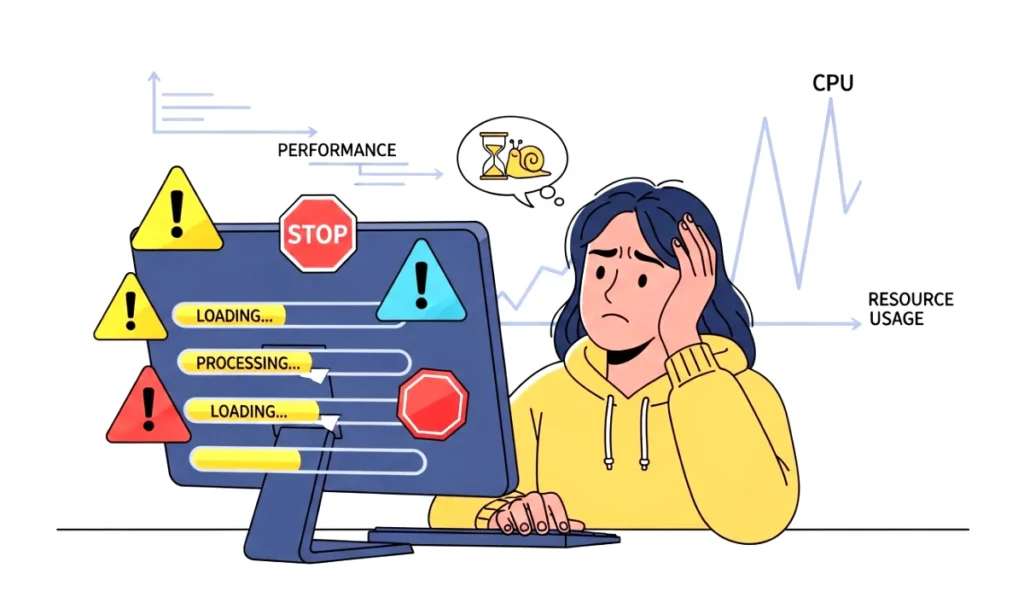
Later I discovered my CPU was hitting very high usage levels, my RAM was full, and a background app was eating resources like crazy. That day taught me a simple lesson. Computers do not slow down without a reason. If you monitor your PC, you can catch issues early.
You can also read : How to Make a Portable Bootable USB Toolkit for Emergencies
Here is why monitoring matters:
- It helps you track CPU, RAM, GPU, and disk usage.
- It alerts you if something is overheating.
- It shows which apps are consuming too many resources.
- It helps prevent system crashes.
- It keeps your PC fast, stable, and healthy.
Think of monitoring as giving your PC regular health checkups. The better you understand what is happening inside, the smoother your overall experience becomes.
How Free PC Performance Monitoring Tools Help
Free PC monitoring tools are like little detectives working inside your computer. They collect data, measure system activity, track resources, and present everything in a way that is easy to understand.
Here is how they help in real life:
1. Game performance becomes smoother
Gamers love these tools because they can watch real time GPU temperature, frame rate, CPU load, and memory usage. If performance drops, it becomes easier to find the root cause.
2. Work and productivity improve
Slow computers can kill your focus. Monitoring tools help you identify heavy background apps so you can stop them and boost speed instantly.
3. Your PC stays safer
Overheating can damage hardware. These tools warn you before anything dangerous happens.
4. You troubleshoot problems faster
Instead of guessing why your PC is slow, you get actual data. That saves both time and money.
5. You extend the lifespan of your system
A well monitored PC rarely faces unexpected breakdowns.
This is why the keyword best free tools to monitor PC performance has become so popular. People want simple solutions that actually work. And thankfully, there are many free tools that do an excellent job.
Best Free Tools To Monitor PC Performance
Here comes the main section you are waiting for. I tested many tools over the years, and these are my top recommendations. They are all free, safe, and beginner friendly.
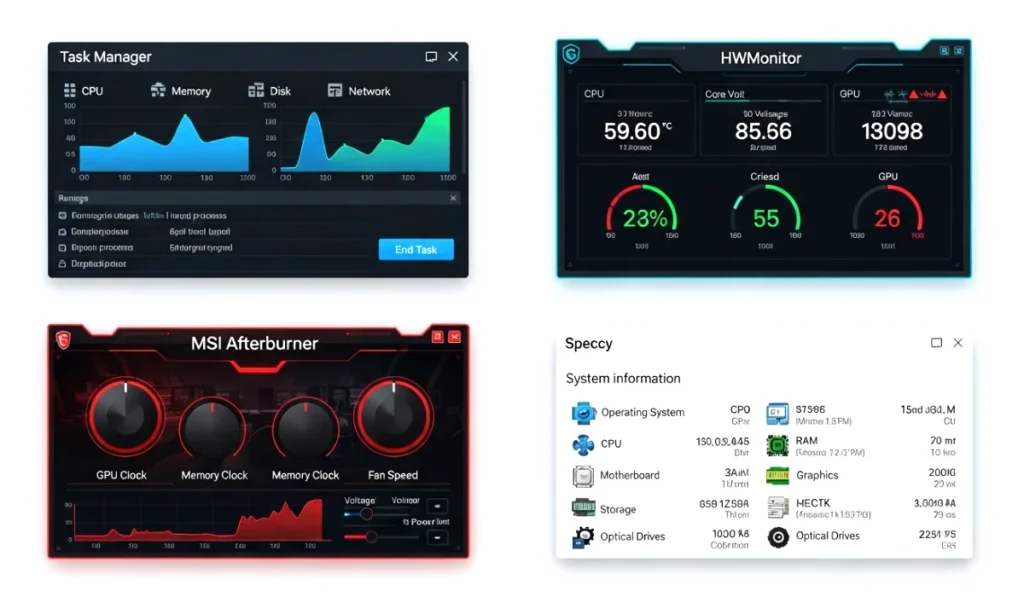
1. Windows Task Manager
Almost everyone has seen Task Manager, but very few people use it properly. The best part is that it comes built into every Windows system, so you do not need to install anything.
Why I love Task Manager:
- Clean and simple layout
- Shows real time CPU, RAM, GPU, and disk usage
- Helps you spot programs slowing your computer
- Offers startup management
Whenever my computer feels slow, I quickly press Ctrl + Shift + Esc and check the Performance tab. You can see everything from temperatures to resource consumption.
2. HWMonitor
HWMonitor is one of the best tools to check temperatures. If your computer overheats during gaming or editing, this tool can help you figure out which component is heating up.
Key features:
- Tracks CPU, GPU, motherboard, and hard drive temperatures
- Shows fan speeds
- Helps diagnose overheating issues
I once used this tool to discover that my graphics card was heating too much because dust was blocking the fan. A simple cleaning fixed the issue.
3. MSI Afterburner
Even if your PC is not from MSI, this tool works beautifully. It is popular among gamers and overclocking enthusiasts.
Why it stands out:
- Real time system monitoring overlay
- GPU temperature tracking
- FPS counter
- Custom fan controls
I personally love the on screen display that shows live stats while gaming.
4. CPU Z
CPU Z focuses on your hardware details. It gives you deep insights into your processor, memory, and motherboard.
What it offers:
- Exact CPU model and performance
- Memory timings
- Motherboard information
If you ever want to check whether your PC components are performing correctly, this tool is amazing.
5. GPU Z
Just like CPU Z, but made especially for your graphics card. If you want a tool to track GPU temperature, load, and memory usage, this one is perfect.
Features:
- GPU clock speeds
- Temperature monitoring
- Real time performance data
Gamers and video editors will find this tool extremely useful.
6. Speccy
Speccy is a complete system information tool. It shows details about nearly every part of your computer.
Why people love Speccy:
- Clean overview of system components
- Temperature monitoring
- Great for troubleshooting
I often use Speccy when helping friends pick the right upgrade for their PC.
7. Open Hardware Monitor
This is a lightweight but very powerful monitoring tool. It works great even on older PCs.
Best features:
- CPU and GPU temperature tracking
- Fan speed monitoring
- Fully free and open source
If you want something simple and effective, this is a great choice.
8. Process Hacker
This tool is like an advanced version of Task Manager. It gives deeper insights into running processes.
What you get:
- Detailed process monitoring
- Service management
- Network activity tracking
Once, I found a hidden background app draining my internet speed, thanks to Process Hacker.
9. Rainmeter
Rainmeter is different because it turns your desktop into a performance dashboard. You can display CPU usage, RAM stats, disk usage, and much more right on your screen.
Why people enjoy Rainmeter:
- Beautiful customizable skins
- Real time system monitoring
- Aesthetic plus functional
It is perfect if you love personalizing your desktop.
10. CrystalDiskInfo
Hard drives also need monitoring. CrystalDiskInfo shows you if your drive is healthy or failing.
Important features:
- Hard drive temperature
- SSD health checks
- Failure warnings
If your system is slowing down because of a failing disk, this tool will warn you early.
Tips To Keep Your PC Healthy
Tools are great, but habits also matter. Over the years, I have learned these simple tips that keep any computer running smoothly.
1. Clean your PC regularly
Dust is a big enemy of performance. It blocks airflow and increases temperatures.
2. Avoid keeping too many programs running
Background apps can consume RAM and slow everything.
3. Keep your drivers updated
Especially graphics drivers. Updates often improve performance.
4. Remove unused apps
More apps mean more startup load and slower performance.
5. Restart your computer often
A good restart clears temporary files and resets processes.
6. Check temperatures during gaming
High temperatures directly affect performance.
7. Use SSD instead of HDD
If you still use a hard drive, upgrading will make a huge difference.
Final Thoughts
Monitoring your PC performance does not have to be complicated. With the best free tools to monitor PC performance, you can easily understand what is happening inside your computer and fix issues before they become serious. Whether you prefer simple tools like Task Manager or advanced options like MSI Afterburner, each one has its own strengths.
Remember, your computer works hard for you every day. Taking a few minutes to monitor and maintain it can keep it fast, safe, and reliable for years. Start with one tool today and see how much smoother your experience becomes.
If you want more tool recommendations or need help choosing the right one for your PC type, feel free to ask me anytime.