Best Remote Collaboration Tools For Small Online Teams

Have you ever tried to work on a group project where everyone was in a different city or even a different country? I remember one of my earliest freelance projects where my team was spread across three different time zones. One member worked mornings, the other worked nights, and I was somewhere in the middle juggling calls, messages, and files that popped up at the most random hours. It felt like trying to build a puzzle while the pieces kept moving.
But once we started using remote collaboration tools for small online teams, everything changed. Suddenly, communication felt clearer, files were easier to find, and meetings stopped being chaotic. It felt like someone finally turned the lights on.
That is the magic of the right digital tools. When chosen wisely, they make remote work feel natural, fast, and stress free. And today, more small teams are working online than ever before. Whether you are running a small business, a startup, a freelancing group, or a side project with friends, the right tools can make all the difference.
Let us explore the tools that truly help small teams stay connected and productive in 2026.
You can also read : Make Your Blog Run Itself With Easy Automation Steps
Why Remote Collaboration Matters Today
Working online has gone from being optional to being normal. Many small teams choose remote work because it is flexible, affordable, and comfortable. But without the right organization, it can quickly become messy.
Here is why remote collaboration is so important for small teams:
1. Better communication
Remote tools keep conversations smooth. Instead of long email chains, teams can talk instantly through chat, voice calls, or video meetings.
2. Easier file sharing
Gone are the days of attaching large files to emails. Remote tools let teams share documents, images, videos, and links in a single place.
3. Time zone flexibility
Team members can work at their own pace while still staying aligned with everyone else.
4. Faster decision making
Everyone sees the same updates, documents, and tasks in real time, which helps speed up decisions.
5. Lower costs
Remote teams do not need office rent or travel expenses. Tools make collaboration smooth without physical space.
Common Challenges Small Online Teams Face
Small teams benefit from remote work, but they also face specific difficulties. Understanding these challenges helps in choosing the right tool later.
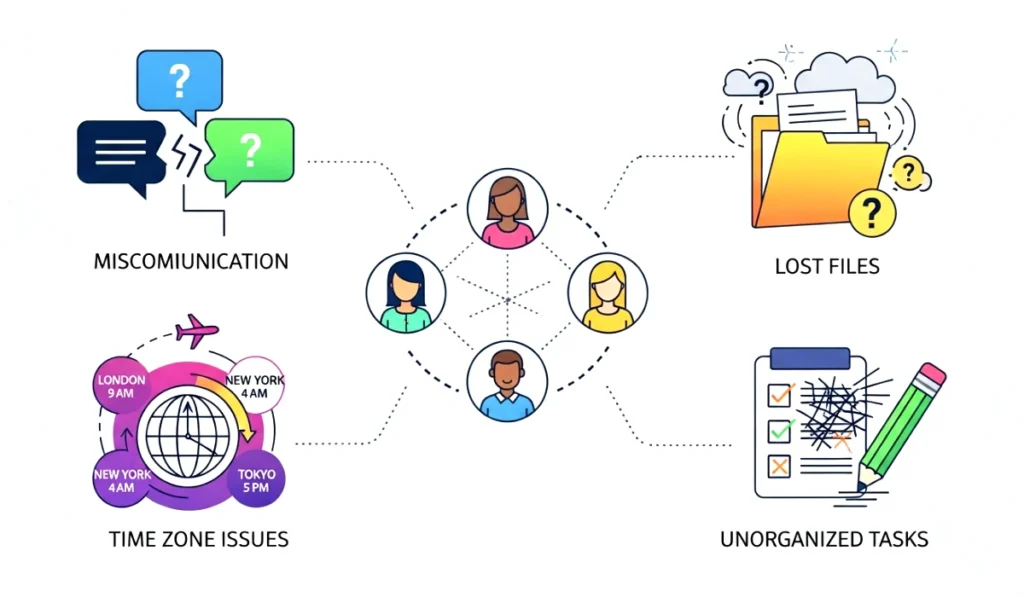
1. Miscommunication
Without face to face interaction, messages can be misunderstood or forgotten.
2. Lost files
One person sends a file in chat, another sends an updated version in email, and soon no one knows which one is correct.
3. Task confusion
It becomes unclear who is doing what unless you track responsibilities clearly.
4. Lack of time coordination
Time zones make collaboration tricky, especially if tools do not support async work.
5. Feeling disconnected
Small teams need strong communication to build trust and stay motivated.
The good news is that the right remote collaboration tools for small online teams solve most of these problems.
Best Remote Collaboration Tools For Small Online Teams
Now comes the exciting part. These tools are ideal for small teams looking to work smoothly in 2026. I have personally used many of them while working with global clients and freelance groups, and they have made remote work feel almost effortless.
1. Slack
Slack simplifies team communication by bringing conversations into organized channels. Instead of messy chats, everything stays in structured spaces.
Why Slack Works So Well:
- Channels for different topics or projects
- Super fast messaging
- Easy file sharing
- Integrations with Google Drive, Notion, Trello, and more
- Searchable history
Slack is perfect for small teams that need fast communication without confusion.
2. Microsoft Teams
Teams is great for groups that want everything in one place. It combines video calls, chat, file sharing, and collaboration.
Why Teams Is Popular:
- High quality video meetings
- Office suite integration
- Shared documents and cloud storage
- Good for business and education
If your team already uses Microsoft tools, Teams feels natural.
3. Google Workspace
Google Workspace tools have helped my teams for years. Simple, fast, and cloud based.
What You Get:
- Google Docs for writing
- Sheets for data
- Drive for file storage
- Meet for video calls
- Calendar for scheduling
The real time editing feature is a lifesaver for collaborative work.
4. Trello
Trello uses boards, lists, and cards to help teams organize tasks visually. It feels like a digital whiteboard that everyone can understand.
Why Small Teams Love Trello:
- Simple drag and drop design
- Easy for beginners
- Perfect for tracking progress
- Great for creative or planning focused teams
If your team loves visual clarity, Trello is a must try.
5. Notion
Notion is a powerful all in one workspace that blends notes, tasks, calendars, wikis, and databases.
Notion Strengths:
- Customizable pages
- Shared documents
- Task management
- Knowledge base creation
- Great for remote teams building systems
It is flexible enough to handle everything from documentation to project management.
6. Zoom
Zoom remains one of the most reliable video meeting tools worldwide.
Why Zoom Helps Small Teams:
- Clear video quality
- Large meeting capacity
- Screen sharing
- Recording options
Perfect for client meetings, team discussions, or workshops.
7. Asana
Asana helps teams stay on track with tasks, deadlines, and workflows.
Top Benefits:
- Workload tracking
- Task assignments
- Project timelines
- Smart reminders
Great for teams managing multiple ongoing tasks at once.
8. Miro
Miro is an online whiteboard that feels almost like drawing on a large canvas with your team.
Why It Is Useful:
- Brainstorming
- Flowcharts
- Design planning
- Real time collaboration
It brings creative teams closer even when they are far apart.
9. Dropbox
Dropbox is a smooth cloud storage solution loved by small teams.
Best Features:
- Simple file sharing
- Team folders
- Automatic sync
- Easy access from any device
Great for storing important files safely.
How To Choose The Right Collaboration Tool
Every team is different, so the best tool depends on your needs.
1. Choose Slack if you want fast communication.
Perfect for teams that chat frequently.
2. Choose Trello or Asana for task management.
Best for organizing and tracking projects.
3. Choose Google Workspace if you need shared documents.
Real time editing makes teamwork smooth.
4. Choose Zoom for meetings.
Amazing audio video quality.
5. Choose Notion for an all in one workspace.
Ideal for building your own team system.
6. Choose Dropbox for secure file storage.
Especially helpful for media heavy teams.
Think about your team size, workflow, and budget. Then pick the tool that matches your goals.
Final Thoughts
Remote collaboration tools for small online teams are not just helpful. They are essential for productivity and growth. Whether your team is working from home, traveling, or spread across countries, the right tools make communication faster, smoother, and stress free. They help you stay organized, track tasks, avoid miscommunication, and keep everyone connected.
Start with one or two tools. Try them for a week. See how your team reacts. Often, even a small improvement in collaboration brings huge changes in results. And if you need help choosing the perfect tool for your unique situation, just ask me anytime bro. I am here to help.
FAQ Section
1. What are remote collaboration tools?
Remote collaboration tools are digital apps or platforms that help online teams communicate, share files, manage tasks, and work together easily without being in the same place. These tools make teamwork smoother and more organized.
2. Why do small online teams need collaboration tools?
Small teams benefit from these tools because they improve communication, reduce confusion, keep tasks organized, and allow members to work efficiently from anywhere. They also help save time and prevent miscommunication.
3. Which collaboration tool is best for beginners?
Trello is one of the easiest tools for beginners. It uses a simple drag and drop system that helps teams visualize tasks. Google Workspace is also beginner friendly because the apps are familiar and easy to learn.
4. How do collaboration tools improve productivity?
These tools centralize conversations, files, deadlines, and tasks in one place. This reduces time spent searching for information and helps everyone stay aligned on goals and responsibilities.
5. What is the best tool for video meetings?
Zoom is one of the most reliable options for high quality meetings. Google Meet and Microsoft Teams are also great choices depending on your workflow.
6. Which tool is ideal for storing and sharing files?
Google Drive and Dropbox are widely used for safe cloud storage. They let teams upload, organize, and share files instantly with others.
7. Can these tools help teams in different time zones?
Yes. Most collaboration tools support async work, meaning team members can update tasks, leave comments, or edit files at any time. Everyone sees changes when they log in, regardless of the time zone.
8. Are these tools safe to use for business files?
Most popular tools like Google Workspace, Slack, Notion, and Dropbox use strong security and encryption. They are safe for professional work as long as teams follow basic security practices.
9. Do small teams need to pay for collaboration tools?
Many tools offer free versions that are perfect for small teams. As your team grows or requires advanced features, you can upgrade to paid plans, but it is not required for basic collaboration.
10. How many tools should a small team use?
Start with two or three tools. One for communication, one for task management, and one for file sharing. Using too many tools can cause confusion.