How to Use Your Phone as a Full Desktop Computer and Replace Your Laptop Completely
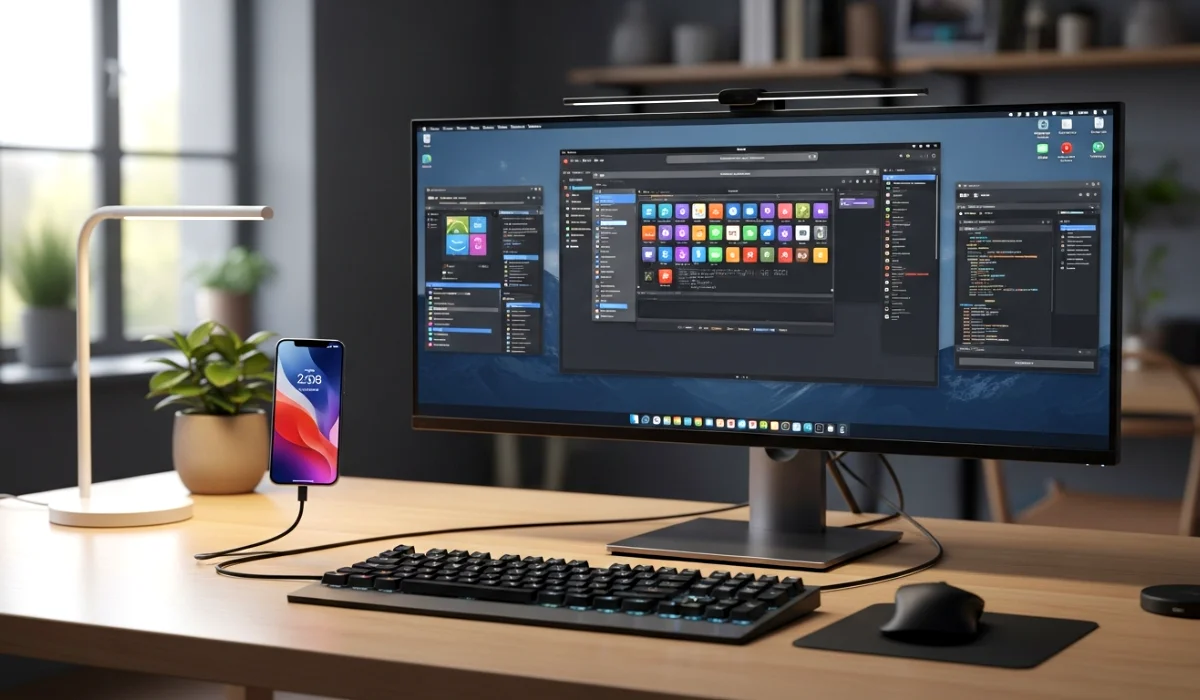
Have you ever looked at your smartphone and thought, this thing is powerful but I am only using it for scrolling and messaging? You are not alone. I had the same thought a couple of years ago when my laptop suddenly stopped working in the middle of an important deadline. I had no backup device, just my phone. Out of curiosity and desperation, I tried connecting my phone to a monitor. What happened next honestly surprised me.
That day changed the way I look at smartphones forever.
Today, learning how to use your phone as a full desktop computer is not some futuristic idea. It is practical, affordable, and already possible with tools you probably own. In this guide, I will walk you through everything step by step in simple English, just like explaining it to a friend over coffee.
Why Using Your Phone as a Desktop Computer Makes Sense
Smartphones today are insanely powerful. Many mid range phones have more RAM than laptops from a few years ago. Processors are faster, storage is bigger, and internet is always connected. So the real question is not can your phone do it, but why are we not using it properly.
Here is why using your phone as a full desktop computer actually makes sense:
First, it saves money. Instead of buying a new laptop for basic tasks like browsing, writing, emailing, or presentations, your phone can already handle it.
Second, it is portable. Your entire desktop goes wherever your phone goes. No data transfer, no syncing issues.
Third, it simplifies life. One device for calls, messages, work, and entertainment.
Once you understand how to use your phone as a full desktop computer, you start seeing your phone as a productivity tool instead of just a distraction.
What You Need to Turn Your Phone Into a Desktop
Before we jump into software and features, let us talk about the basic setup. The good news is, you do not need expensive equipment.
Here is what you need:
A smartphone with decent performance. Most modern Android phones work fine. Even budget phones can do basic desktop tasks.
A monitor or TV. Any HDMI monitor or smart TV will work.
A USB hub or adapter. This helps connect your phone to the monitor and accessories.
Keyboard and mouse. Wired or wireless both work.
Optional but helpful items include a phone stand and a power adapter so your phone stays charged during use.
This simple setup is enough to start your journey of using a phone as a desktop computer.
How Desktop Mode Works on Android Phones
Android has evolved a lot. Many people still think it is only for mobile apps, but Android actually supports desktop style multitasking.
Some phones come with built in desktop modes. Others can simulate a desktop using apps.
Desktop mode means:
Apps open in resizable windows
You can use keyboard shortcuts
Mouse works like on a computer
Multiple apps can run side by side
This is the foundation of learning how to use your phone as a full desktop computer.
Using Samsung DeX for a Real Desktop Experience
If you own a Samsung phone, you are lucky. Samsung DeX is one of the best mobile desktop solutions available today.
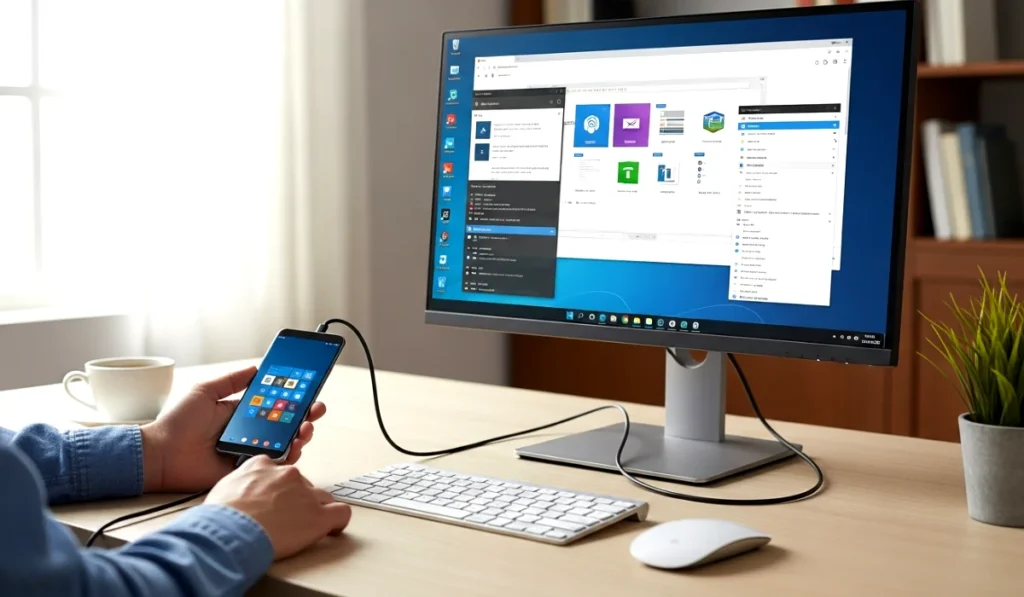
Samsung DeX allows your phone to transform into a full desktop interface when connected to a monitor.
When I first tried DeX, it honestly felt like using a lightweight PC. Taskbar at the bottom, apps opening in windows, right click support, and smooth multitasking.
What you can do with Samsung DeX:
Write documents using Google Docs or Microsoft Word
Create presentations
Browse with full desktop style tabs
Manage files easily
Attend online meetings
DeX is a perfect example of how to use your phone as a full desktop computer without compromising usability.
How to Use a Phone as a Desktop Without DeX
Not everyone has a Samsung phone, and that is totally fine. You can still use your phone as a desktop computer.
There are Android apps that create a desktop like launcher. These apps simulate a PC environment with start menu style layouts and windowed apps.
Popular options include:
Desktop style launchers
Screen mirroring apps
Remote desktop apps
Screen mirroring lets you show your phone screen on a monitor. Pair it with a keyboard and mouse, and suddenly your phone feels much more powerful.
Remote desktop apps allow you to access a cloud PC or your home computer using your phone. This is another smart workaround.
Best Apps to Create a Desktop Like Environment
Apps play a huge role when learning how to use your phone as a full desktop computer.
Here are some categories of apps you should explore:
Productivity apps like Google Docs, Sheets, and Slides
File managers that support drag and drop
Web browsers with desktop mode
Office apps that support keyboard shortcuts
The key is choosing apps that are optimized for larger screens and external input devices.
I personally use a combination of Google Chrome desktop mode and Google Docs, and it handles almost all my writing work smoothly.
Keyboard Mouse and Monitor Setup Explained
This part scares many beginners, but it is actually simple.
Most USB hubs support plug and play. Connect your phone to the hub, then connect keyboard, mouse, and HDMI cable.
Wireless keyboard and mouse usually connect through Bluetooth. Once paired, they work just like on a PC.
Mouse right click works in many apps
Keyboard shortcuts like copy paste work
Scrolling feels natural
Once you experience this, the idea of using a phone as a desktop computer starts feeling very real.
Can a Phone Really Replace a Laptop
Now let us be honest.
Can a phone fully replace a laptop for everyone? Not always.
But for many people, yes.
If your work involves:
Writing blogs
Email management
Online research
Video calls
Basic photo editing
Then learning how to use your phone as a full desktop computer can absolutely replace a laptop.
However, heavy video editing, advanced programming, or gaming still require a traditional computer.
Pros and Cons of Using Your Phone as a Desktop
Let us break it down clearly.
Pros
Saves money
Highly portable
One device for everything
Low power consumption
Always connected to internet
Cons
Limited software support
Not ideal for heavy tasks
Smaller storage compared to PCs
Some apps are not optimized
Understanding these helps you set realistic expectations.
Who Should Try This Setup
This setup is perfect for:
Students who cannot afford a laptop
Freelancers who travel a lot
Bloggers and content writers
Remote workers doing light tasks
Anyone curious about mobile productivity
If you fall into any of these categories, learning how to use your phone as a full desktop computer is worth your time.
Real Life Example From My Experience
When my laptop died, I completed an entire blog project using only my phone connected to a monitor. I wrote, edited, researched, and even uploaded the article.
Was it perfect? No.
Was it possible? Absolutely yes.
That experience taught me that limitations are often mindset based, not technology based.
Final Thoughts and Action Steps
Smartphones are no longer just communication devices. They are powerful mini computers hiding in plain sight.
If you truly want to improve productivity and save money, start experimenting today.
Here is what you should do next:
Check if your phone supports desktop mode
Buy a simple USB hub
Connect to a monitor or TV
Add keyboard and mouse
Start with basic tasks
Once you get comfortable, you will never look at your phone the same way again.
Learning how to use your phone as a full desktop computer is not about replacing laptops completely. It is about unlocking the full potential of a device you already own.
Try it once. You might be surprised.