
Best Browser Settings to Stay Private Online
Have you ever wondered why your browser seems to know you better than some of your friends? You search for a simple recipe, and suddenly every website you visit starts showing ads about ingredients, cooking tools, and random kitchen gadgets you never even thought about buying. It feels strange, right? I remember once looking up garden plants just for fun, and for a whole week my timeline turned into a botanical jungle. That moment made me pause and think about how much of my browsing life was being collected without me realizing it.
If you have felt the same, you are already taking the first step toward awareness. And awareness is the beginning of privacy. Today we are going to look at something simple but incredibly powerful: the best browser settings to stay private online. You do not need complicated tools or technical knowledge. Just a few smart settings in your regular browser can change the entire way your online world feels.
So grab a cup of chai or coffee, get comfortable, and let us explore how to make your browsing experience truly private.
Why Online Privacy Matters
Before we switch on privacy settings, it is important to understand why online privacy even matters. When you browse the internet, many invisible systems are quietly watching what you click, what you search, how long you stay on a page, and sometimes even what you type. This information is used for ads, sales, analytics, and sometimes things you never agreed to.
You can also read : Recognizing Phishing Emails With Real Life Examples
Here are a few reasons why privacy is a big deal:
You deserve control
Your data belongs to you. Your browser activity should not be treated like free marketing material. When you adjust privacy settings, you take back control.
Prevents unwanted ads
When websites stop tracking you, ads become less creepy. No more feeling like someone is following you around the internet.
Protects sensitive searches
Maybe you look up medical questions, personal problems, relationship advice, or financial topics. Some things are better kept private.
Reduces risks
Less tracking means less chance of being profiled, targeted, or exposed to shady sites trying to collect your information.
Think of privacy like closing your window curtains at night. You are not hiding anything. You just prefer not to be watched.
Essential Browser Privacy Settings
Now let us move into your browser. Whether you use Chrome, Safari, Firefox, Brave, or any other browser, most of them offer similar settings that boost your privacy. You just need to know where to look.
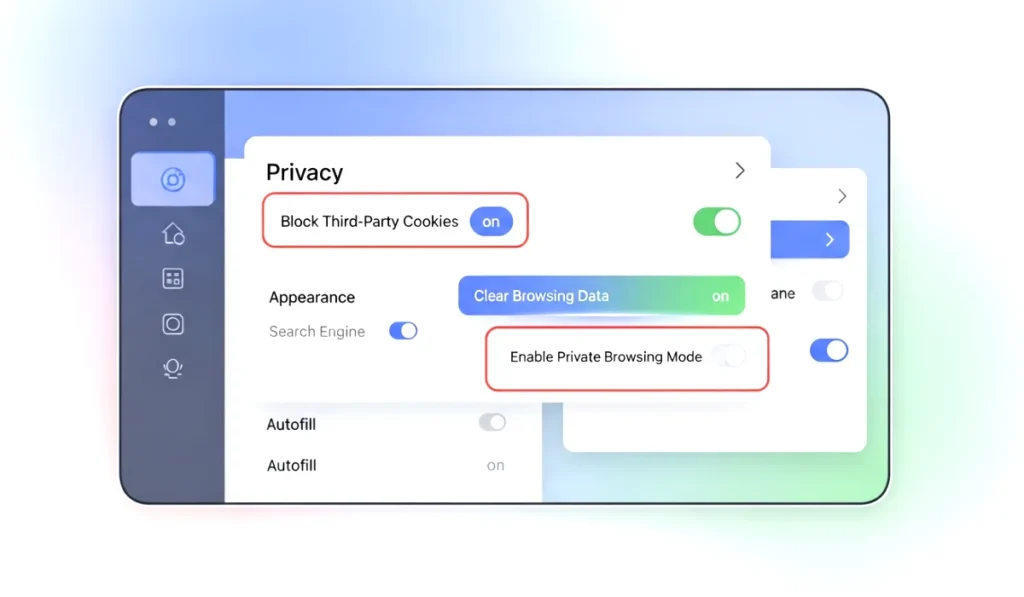
These are the most important ones.
1. Turn Off Third Party Cookies
Third party cookies follow you around from website to website. That is how ads seem to magically know everything. When you disable them, you break the breadcrumb trail that advertisers rely on.
Look for:
- Block third party cookies
- Block all cross website tracking
- Restrict tracking cookies
This one setting alone can dramatically reduce how much you are followed online.
2. Enable Do Not Track
While not every website respects this request, enabling it still sends a clear signal that you prefer not to be tracked.
You will find this option under privacy or security settings.
3. Clear Browsing Data Automatically
Lots of people keep months of browsing history without knowing it. Your cache, cookies, downloads, and site permissions stay stored forever unless you delete them.
Set your browser to:
- Clear browsing data on exit
- Auto delete cookies regularly
- Erase search history automatically
Imagine walking out of your house and wiping your footprints behind you. That is what this setting does.
4. Use Private or Incognito Mode More Often
Private browsing does not make you invisible. However, it does prevent your browser from storing your:
- History
- Cookies
- Cache
- Search logs
If you are researching personal topics or logging into multiple accounts, private mode is a great shield.
5. Disable Ad Personalization
Most browsers and search engines show you personalized ads based on your activity. Turn this off to prevent your profile from being built quietly behind the scenes.
Look for settings like:
- Ad personalization
- Activity tracking
- Interest based ads
Once turned off, you stop feeding the ad ecosystem with your data.
Blocking Trackers and Cookies
While basic privacy settings help a lot, trackers are still everywhere. They take tiny pieces of information from every site you visit, every button you click, and sometimes even how fast you scroll.

Browsers today offer built in tools to block them.
1. Turn On Tracking Protection
Depending on your browser, this may be called:
- Enhanced tracking protection
- Tracking prevention
- Shield protection
- Privacy guard
This feature blocks:
- Social media trackers
- Ads trackers
- Fingerprinting scripts
- Cross site tracking codes
Your browsing becomes cleaner and lighter, almost like opening a window in a stuffy room.
2. Block Popups and Redirects
Popups are not just annoying, they are privacy traps. Redirects can also push you into risky corners of the web.
Keep popup blocking turned on at all times.
3. Restrict Website Permissions
Many websites ask for permissions that are not necessary. Imagine a recipe site asking for your microphone. Strange, right?
Check permissions for:
- Camera
- Microphone
- Location
- Notifications
- Clipboard access
Turn them off unless you truly need them.
Search Privacy and Safe Browsing
Your browser is where privacy starts, but your search engine is where most data collection happens. When you type something into search, the engine instantly learns a lot about you.
Let us make your searching private too.
1. Use a Privacy Focused Search Engine (Optional but Helpful)
If you want a clean experience without profiling, you can switch to:
- DuckDuckGo
- Startpage
- Qwant
These search engines do not track your queries. They simply give you results and let you go on your way.
Even if you stick to your current search engine, you can still limit tracking through browser settings.
2. Turn Off Search Predictions
Search prediction sounds convenient, but it collects data from your typing habits. If you want less of that, disable:
- Search suggestions
- Autocomplete
- Personalized predictions
It will feel slightly different at first, but your privacy will thank you.
3. Enable Safe Browsing Features
Most browsers include protection settings that alert you about:
- Suspicious sites
- Unsafe downloads
- Malware links
- Phishing attempts
Leave these settings turned on. They create a protective shield around your searches.
Extra Security Settings for Strong Protection
Sometimes you want even stronger protection. These settings are for people who want the safest possible browsing environment without needing technical skills.
1. Enable HTTPS Only Mode
HTTPS is the secure version of websites. Without it, your data is exposed. When you enable HTTPS only mode, your browser blocks any site that does not use secure encryption.
You will notice a small lock icon in your address bar on secure sites.
2. Use a Password Manager
A password manager stores your logins safely. It also helps you create stronger passwords instead of reusing the same one everywhere.
Benefits:
- Prevents password leaks
- Saves time
- Protects accounts
- Avoids weak passwords
It becomes one of the simplest ways to boost overall digital safety.
3. Disable Unnecessary Browser Extensions
Extensions can be super useful, but some collect your data in the background.
Regularly check:
- Which extensions you installed
- What permissions they have
- If you really need them
Uninstall anything you do not use anymore.
4. Turn On Firewall or Security Integration
Some browsers allow integration with your device firewall or built in security tools. Make sure these are enabled for extra protection against harmful sites and downloads.
Daily Privacy Habits to Follow
Browser settings help a lot, but habits are equally important. These small steps improve your privacy every day.
1. Do Not Log Into Every Website
Many websites ask you to make accounts when you do not really need them. The more accounts you create, the more profiles are built around you.
2. Avoid Clicking Suspicious Links
If a link feels odd or untrustworthy, skip it. Trust your instinct. Most privacy issues start with one careless click.
3. Use Different Browsers for Different Tasks
Some people use one browser for work, another for personal browsing, and one for entertainment. This helps keep your data separated.
4. Clear Cookies and Cache Regularly
If you do not set auto delete, make it a habit to clear your browser manually. It feels refreshing and keeps tracking minimal.
5. Keep Your Browser Updated
Updates often contain privacy improvements and security patches. Do not ignore update notifications.
Final Thoughts on Browsing Privately
Privacy does not have to be complicated. With the best browser settings to stay private online, you can protect your digital footprint in a simple, stress free way. When you make these changes, your browsing becomes cleaner, safer, and more peaceful. No more feeling monitored or chased around by ads.
You deserve a private online space. And with the settings and habits shared in this guide, you can reclaim it starting today.
If you found this helpful, try applying just one setting right now. You will feel the difference instantly.





One Comment