How To Organize Files And Folders For Fast Access

Have you ever opened your computer and felt like your files were staring back in chaos? I have been there too. There was a time when every important document, photo, project, and screenshot lived randomly on my desktop. It looked like a digital junk drawer. One day during a tight deadline, I desperately searched for a client folder that I swore I saved somewhere. I clicked through every folder, every drive, every shortcut. Nothing. That ten minute panic felt like an hour.
Later I found the file sitting deep inside a folder named “New folder 3 copy” that I had created without even thinking. That incident convinced me I needed to change how I handled my digital life. And trust me, learning how to organize files and folders for fast access completely changed my daily workflow. Suddenly, everything felt lighter, faster, more under control.
If you are tired of slow searches, messy folders, or lost documents, this guide will help you get your system clean and fast without stress. Now let us dive deeper into why file organization matters and how you can build a smooth, clutter free digital workspace.
Why File Organization Matters Today
We live in a world where digital life moves faster than ever. Everything from school projects to business reports to personal memories stays inside our devices. When your digital space is messy, your mind starts feeling cluttered too. That is why learning how to organize files and folders for fast access is no longer optional. It is necessary.
1. Saves time every single day
Searching for files takes longer than we think. A small delay every day becomes hours lost every month. Organized folders give instant access.
2. Reduces stress and confusion
Messy files drain mental energy. A clean structure removes that pressure and makes your work feel smoother.
3. Boosts productivity
When you know where everything is, you can stay focused longer and complete tasks faster.
4. Helps avoid mistakes
Wrong file versions, missing documents, duplicate folders, accidental deletions. Good organization prevents these frustrating problems.
5. Keeps your storage clean
A structured system makes it easier to delete useless files and save only what you need.
Once you experience the comfort of a neat system, you will wonder how you ever lived without it.
Mistakes People Make While Storing Files
Before we talk about how to organize files and folders for fast access, let us look at the common mistakes we all make. I have made these mistakes myself, and almost everyone does at some point.
1. Saving everything on the desktop
This makes your computer slow and messy. It also becomes impossible to find things quickly. Desktop is for shortcuts, not storage.
2. Using unclear folder names
Names like “New folder” or “Project final latest new” only cause confusion later.
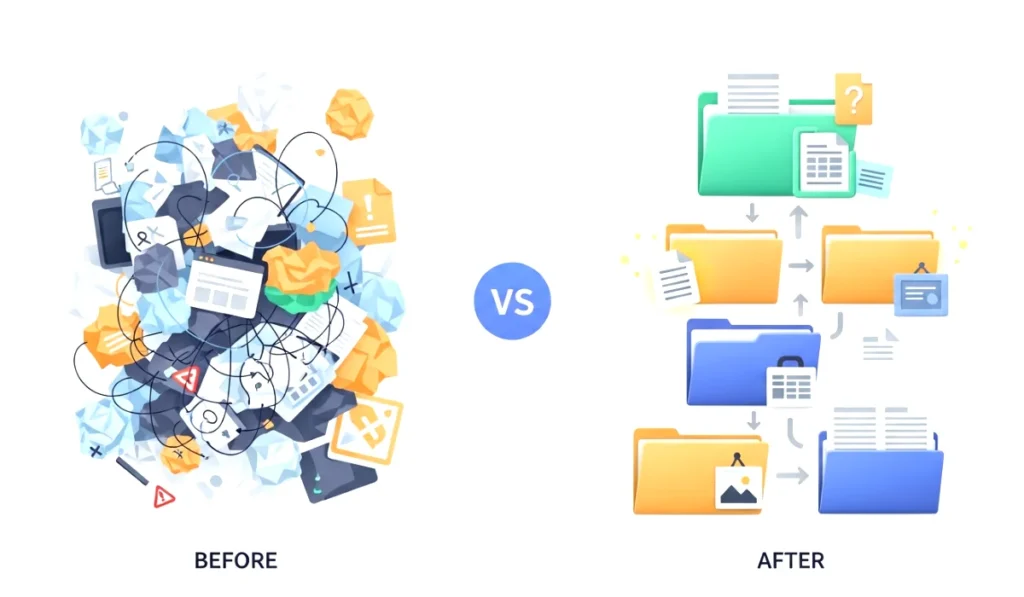
3. Not using categories
Dumping everything into one or two folders leads to long scrolling and wasted time.
4. Forgetting to delete unnecessary files
Old screenshots, duplicates, and random downloads clutter the system.
5. Keeping many versions of the same file
Version chaos can easily confuse you when selecting the updated one.
Avoiding these mistakes already gives you a head start.
Simple Methods To Organize Files And Folders For Fast Access
Now we get into the important part. These methods are beginner friendly, practical, and very effective. If you follow even half of them, your system will feel ten times faster.
1. Use a clear main folder structure
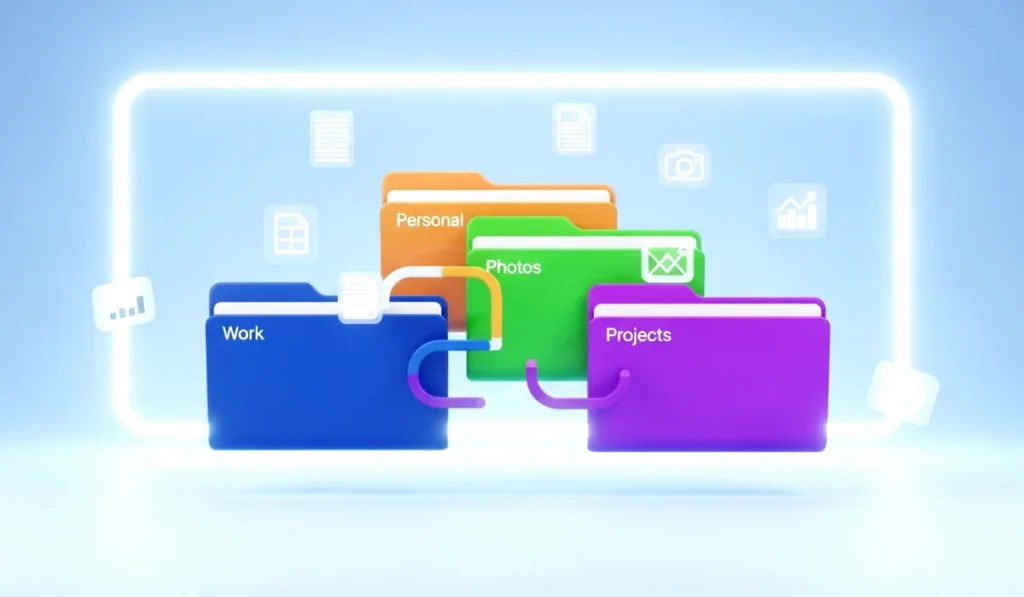
Start with broad categories. For example:
- Work
- Personal
- Photos
- Finance
- Projects
- Downloads
- Apps and Tools
Inside each category, create subfolders that match your routine.
A clear framework helps you understand where any new file should go.
2. Name folders in a meaningful way
Good naming saves you hours.
Use simple, readable names like:
- Client A Designs
- Taxes 2025
- Travel Photos Italy
- School Assignments
Avoid confusing or long names. The cleaner the title, the easier the access.
3. Use dates in your file names
Dates are extremely helpful for sorting.
For example:
- Invoice 2025 March
- Project Report 2026 Jan
- Meeting Notes 2026 02 16
This helps you instantly identify the latest update.
4. Create a dedicated folder for downloads
Your downloads folder is where clutter grows the fastest.
So here is what you should do:
- Keep everything in downloads temporarily
- Move important files to their correct folders daily
- Delete unnecessary items at the end of the day
Think of the downloads folder as a temporary parking space.
5. Use shortcuts instead of duplicating files
If you need the same file in multiple places, do not create duplicates.
Use shortcuts. It saves storage and keeps things organized.
6. Add color tags or labels
Color coding is one of my favorite tricks.
For example:
- Red for urgent
- Blue for personal
- Green for finance
- Yellow for ideas
Colors make it easier to scan and identify files quickly.
7. Use cloud storage for important documents
Google Drive, OneDrive, Dropbox, or iCloud can store essential files safely.
Cloud storage helps with:
- Access from any device
- Automatic backup
- Easy sharing
- Protection from hardware failure
Your most important files should always be backed up in the cloud.
8. Use search friendly keywords
Whenever you name a file, use words that you would normally type in a search bar.
For example:
- Grocery list
- Resume updated
- Car insurance details
This makes file searches fast and effortless.
Smart Folder Structures You Can Use
To make your system truly efficient, try these ready made folder structures. They work well for students, professionals, freelancers, and families.
1. The Daily Life Structure
This structure is perfect for everyday users.
- Personal
- Photos
- Videos
- Documents
- Bills and Receipts
- Health
- Travel
Each one can have subfolders like years, months, events, or categories.
2. The Work and Study Structure
Great for students, remote workers, and office employees.
- Work
- Projects
- Reports
- Meetings
- Resources
- Clients
- Study
- Subjects
- Notes
- Assignments
- Research
This keeps all your academic and professional files neatly sorted.
3. The Creative Structure
Ideal for designers, writers, editors, and creators.
- Writing
- Drafts
- Final
- Ideas
- Design
- Logos
- Social Media
- Illustrations
- Videos
- Raw Footage
- Edits
- Published
Creative people love this because it keeps projects clean and easy to manage.
4. The Business Structure
Perfect for small business owners or freelancers.
- Clients
- Finances
- Contracts
- Marketing
- Invoices
- Projects
Everything stays professional and accessible.
Tips To Maintain A Clean Digital System
You can learn how to organize files and folders for fast access, but the real magic comes from maintenance. Here are simple habits that keep your system clean every day.
1. Do a weekly cleanup
Delete old screenshots, duplicates, junk files, and unused downloads.
2. Follow the one touch rule
When you download something, move it immediately to the correct folder.
3. Keep your desktop empty
A clean desktop gives a smooth start every morning.
4. Use automatic backup tools
Set up cloud sync or external drive backups for safety.
5. Review your folders monthly
Remove outdated or unnecessary files to prevent storage overload.
These small habits save hours in the long run.
Final Thoughts
Learning how to organize files and folders for fast access is not about perfection. It is about creating a simple, manageable system that saves time and reduces stress. Your digital space should feel like a comfortable room, not a messy closet that you avoid opening. Once you set up a clear structure, everything becomes faster. Your work feels lighter, your mind feels calmer, and your productivity naturally increases.
Start small. Pick one folder today, clean it a bit, and create a simple structure. You will feel the difference immediately. And if you ever need help building a personalized folder system, just ask bro. I am always here to help.
FAQ Section
1. Why is it important to organize files and folders?
Organizing your files helps you find documents quickly, reduces digital clutter, and improves your productivity. A neat folder system also prevents losing important files and saves time during work or study.
2. How often should I clean my files and folders?
A weekly mini cleanup works best for most people. You can delete unnecessary items from your downloads folder, remove duplicates, and organize new files into the right places. Monthly reviews help maintain long term cleanliness.
3. What is the easiest way for beginners to organize files?
Start with broad main folders like Work, Personal, Photos, Projects, and Finance. Then create simple subfolders. Use clear names and move files in small batches instead of doing everything at once.
4. How can I access my files faster on my computer?
Use meaningful file names, add date formats, create shortcuts for frequently used folders, apply color labels, and pin important folders to your quick access bar. These small steps cut down search time.
5. Should I use cloud storage for organizing files?
Yes, cloud storage is helpful because it syncs automatically, allows access from any device, and safeguards your files if your computer crashes. It is a great way to store important documents securely.
6. What is the best naming system for files?
Use short, clear names with keywords you would naturally search for. Adding date formats like 2026 Jan or 2025 Report helps sort files chronologically. Avoid long or confusing file names.
7. How do I stop my desktop from becoming messy?
Avoid saving files on the desktop. Keep it clean by creating a dedicated Work in Progress folder. Move everything into the correct folders at the end of the day or during your weekly cleanup.
8. What can I do if I have too many old files?
Start with the newest files first. Create new folders and slowly shift important items into them. You do not need to organize everything in one day. Break it into small tasks to avoid stress.
9. Are tags and colors helpful for organization?
Yes. Color labels and tags make scanning through folders much easier. They are especially useful for marking urgent files, important projects, or categories you access frequently.
10. Can I use the same folder structure on my phone and laptop?
Yes. Using a similar structure across devices makes everything more consistent. Cloud storage apps can sync your structure, allowing access to files anytime and keeping things familiar.