How to Test Real Internet Speed Correctly (Most People Get This Wrong)
Have you ever tested your internet speed, felt happy seeing big numbers, and then wondered why Netflix still buffers or Zoom calls freeze at the worst moment?
Yeah, I have been there too.
A few years ago, I upgraded my internet plan thinking faster speed would magically fix everything. The ISP promised blazing fast internet. I ran a speed test, saw impressive numbers, and thought, problem solved. But real life told a different story. Downloads were slow, online games lagged, and video calls kept dropping.
That was the day I realized something important. Most people do not know how to test real internet speed correctly. They rely on one quick test and trust it blindly. But here is the thing. Internet speed testing is more nuanced than clicking a button and reading numbers.
In this guide, I will walk you through how to test real internet speed correctly, explain what those numbers actually mean, and share practical tips that actually reflect real world performance. No hype. No confusing jargon. Just honest, usable advice.
Now, let us dive deeper.
What Does Internet Speed Really Mean
Before learning how to test real internet speed correctly, you need to understand what internet speed actually measures. Many people assume speed is just one number. That assumption causes confusion.
Internet speed is usually broken into three main components.
Download Speed
This shows how fast data comes from the internet to your device. Streaming videos, browsing websites, downloading files, and scrolling social media all depend on download speed.
Upload Speed
This measures how fast data goes from your device to the internet. Upload speed matters for video calls, sending emails with attachments, uploading videos, and cloud backups.
Ping and Latency
Ping measures how quickly your device communicates with a server. Lower ping means faster response time. This is crucial for online gaming, live meetings, and remote work tools.
Here is the key takeaway.
High download speed alone does not guarantee smooth internet. Balanced upload speed and low latency matter just as much.
Why Most Internet Speed Tests Are Misleading
This is where things get interesting. Many popular speed tests are not wrong, but they are incomplete.
Speed test tools usually connect you to the nearest server. That server is optimized for speed testing. In real life, you are connecting to servers all over the world, not just the closest one.
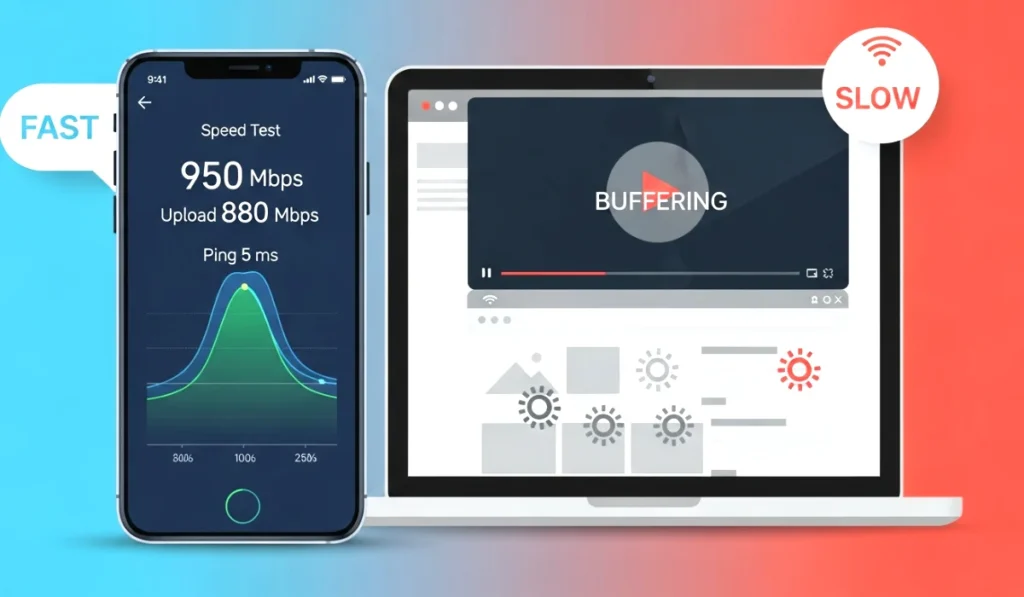
Common reasons speed tests give misleading results include:
- Testing during off peak hours when the network is less crowded
- Using wired connection once and WiFi later
- Background apps consuming bandwidth
- ISP prioritizing speed test traffic
- Testing on one device only
So if you want to know how to test real internet speed correctly, you need a smarter approach.
Best Time to Test Your Internet Speed
Timing matters more than people realize.
Internet speed fluctuates throughout the day depending on how many users are active in your area. Testing once at midnight does not represent daily performance.
Recommended Testing Times
To get accurate results, test your speed at different times:
- Early morning
- Afternoon
- Evening peak hours
- Late night
If your speed drops significantly during peak hours, that tells you a lot about network congestion.
When I tested my connection only at night, everything looked perfect. Once I tested during evening hours, the truth came out. Speeds dropped almost by half.
How to Prepare Before Testing Internet Speed
Preparation is the most ignored step, yet it is the most important.
If you skip this, your results will not reflect real internet speed.
Steps to Prepare Properly
- Close all background apps and downloads
- Pause cloud sync services
- Disconnect unused devices from WiFi
- Restart your modem and router
- Use the same device for comparison tests
These small steps make a big difference.
Wired vs WiFi Speed Testing
This is one of the biggest mistakes people make.
Wired Connection Testing
A wired Ethernet connection gives the most accurate result. It removes interference caused by walls, distance, and signal strength.
WiFi Testing
WiFi testing reflects real usage but can be affected by:
- Router placement
- Distance from router
- Interference from other devices
- Router quality
The best approach is to test both.
First test using Ethernet to know your true ISP speed. Then test WiFi to understand real world performance.
Best Tools to Test Real Internet Speed Correctly
Do not rely on just one tool. Each tool uses different servers and methods.
Popular and Reliable Speed Test Tools
- Google Internet Speed Test
- Speedtest by Ookla
- Fast.com by Netflix
- Cloudflare Speed Test
Run tests on at least two platforms. Compare results instead of trusting a single number.
Understanding Speed Test Results Properly
Numbers without context are useless.
What Download Speed Is Enough
- 5 to 10 Mbps for basic browsing
- 15 to 25 Mbps for HD streaming
- 50 Mbps or more for multiple users
What Upload Speed Is Enough
- 3 to 5 Mbps for video calls
- 10 Mbps or more for content creators
Acceptable Ping Levels
- Under 30 ms is excellent
- 30 to 60 ms is good
- Above 100 ms can cause lag
If your results meet these benchmarks consistently, your internet is performing well.
How to Test Real Internet Speed on Mobile Devices
Mobile speed testing is a bit different.
Mobile networks depend on signal strength, location, and network congestion.
Tips for Accurate Mobile Testing
- Turn off WiFi and test on mobile data
- Test in multiple locations
- Avoid testing in elevators or basements
- Test both indoors and outdoors
Mobile speeds can vary wildly, so consistency matters more than peak numbers.
Testing Internet Speed for Streaming and Gaming
This is where theory meets reality.
For Streaming
Instead of relying only on speed tests:
- Stream a 4K video
- Observe buffering frequency
- Check resolution drops
For Gaming
Ping and jitter matter more than raw speed.
- Run ping tests to game servers
- Monitor packet loss
- Test during peak gaming hours
Real performance beats synthetic numbers every time.
ISP Throttling and Speed Test Tricks
Here is something most people do not realize.
Some ISPs prioritize traffic to popular speed test websites. That means your test looks great, but real usage suffers.
To avoid this:
- Use lesser known speed test servers
- Download large files from different sources
- Test VPN on and off to compare speeds
If speed drops significantly when using VPN, throttling might be involved.
How Often Should You Test Internet Speed
Testing once a month is not enough.
Recommended Frequency
- Weekly for home users
- Daily for remote workers
- Before and after plan upgrades
Keep a simple log. Patterns matter more than individual results.
Common Mistakes People Make While Testing Internet Speed
Avoid these mistakes if you truly want to know how to test real internet speed correctly.
- Testing only once
- Ignoring upload speed
- Testing on outdated devices
- Standing next to router for WiFi tests
- Believing advertised ISP speeds blindly
Learning from mistakes saves time and frustration.
Real Life Example From My Experience
Let me share a quick personal story.
I once complained to my ISP about slow internet. They asked me to share speed test screenshots. I sent them results showing full speed. Case closed, according to them.
Later, I tested properly across multiple times, devices, and tools. I documented drops during peak hours. With real evidence, the ISP finally acknowledged the issue and fixed the line.
Lesson learned. Correct testing gives you leverage.
How to Test Real Internet Speed Correctly Step by Step
Let us summarize the correct method clearly.
- Restart modem and router
- Disconnect unused devices
- Close background apps
- Test using Ethernet
- Test using WiFi
- Use multiple tools
- Test at different times
- Compare results over days
Follow this, and you will know your true internet speed.
Final Thoughts on Testing Internet Speed
Internet speed testing is not about chasing big numbers. It is about understanding real performance.
Once you learn how to test real internet speed correctly, you stop guessing and start making informed decisions. Whether it is switching ISPs, upgrading plans, or optimizing your setup, knowledge puts you in control.
If your internet feels slow, do not trust one test. Test smart. Test consistently. Test like a pro.
Frequently Asked Questions (FAQ)
1. What is the most accurate way to test real internet speed?
The most accurate way is to test using a wired Ethernet connection, close all background apps, and run multiple tests at different times of the day. Using more than one speed testing tool also helps you understand real world performance instead of relying on a single result.
2. Why does my internet speed test show high speed but feels slow?
This usually happens because speed tests connect to nearby optimized servers. In real use, your internet connects to many distant servers. Network congestion, high latency, weak WiFi signals, or background data usage can make your internet feel slow even when speed test numbers look good.
3. How many times should I test my internet speed for accurate results?
You should test at least three to five times across different hours such as morning, afternoon, and evening. Tracking results over a few days gives a clearer picture of your actual internet speed and helps identify peak hour slowdowns.
4. Is WiFi speed always slower than wired internet speed?
In most cases, yes. WiFi speed can be affected by distance from the router, walls, interference, and router quality. A wired connection usually provides more stable and accurate speed results, which is why it is recommended for proper internet speed testing.
5. Can my ISP fake or manipulate internet speed test results?
Some internet service providers may prioritize traffic to popular speed testing websites, making results appear faster than real usage. To avoid this, use multiple speed test tools, download large files from different websites, and test with a VPN to compare performance.